If you’ve looked into digitizing documents, you’ve probably come across the term “OCR.” When you scan papers with written text, OCR is the technology that can digitize that text and make it searchable, indexable, and even editable. It’s easy to see how using scanning software with OCR functionality can save time, prevent transcription errors, and help build databases.
What is OCR and what does it stand for?
OCR stands for “optical character recognition” and it allows users to convert printed text into machine-readable, editable data once the printed text has been scanned.
OCR text recognition can benefit any organization that works with a lot of paper-based information it needs to store and/or be able to access in the future. Businesses with backlogs of paper records can convert them into digital formats with minimal effort. Companies that receive dozens, hundreds, or thousands of new documents on a daily basis can scan and index new files almost instantly.From healthcare to finance to education, OCR can help collect and organize valuable data.
What does scan to OCR mean?
Let’s say an employee has a receipt for a business expense. They scan the paper using an OCR-enabled software suite. The new digital copy has selectable, searchable text, meaning that the employee can simply copy and paste the vendor and price when filing for reimbursement. Alternatively, the reimbursement software could extract this information from the file automatically.
By default, every piece of scanned media becomes an image file. Through pattern analysis and algorithmic matching, scanning software with OCR can identify letters, numbers, and symbols. In other words, a program recognizes known characters and converts them into digital text. OCR accuracy therefore depends on both the image resolution of the scanner and the quality of the software.
Did You Know?:The RICOH fi-8170 scanner comes with PaperStream software, which boasts sophisticated OCR features. With scanning speeds of up to 70 double-sided pages per minute, your business could digitize thousands of documents per workday. Click here to learn more.
What is OCR software?
Optical character recognition (OCR) software refers to technology that converts scanned images into editable documents. Most OCR software starts by cleaning up the scan. That might include correcting skew, reducing noise, or identifying different segments of the document. Next, the software runs the document through its OCR engine which analyzes the light and dark areas of an image to identify text characters. It can do that using one of a few different processes.
Pattern recognition OCR compares the text to a database of patterns. It’s best used in highly standardized documents, as it can struggle with different fonts and styles. Feature extraction OCR uses a more sophisticated method of breaking text down to its components: lines, curves, and where they intersect. That extra step allows feature extraction to maintain its accuracy even as fonts and styles change. If you’re looking to digitize handwriting, you’ll need intelligent character recognition (ICR). ICR uses machine learning to augment its character recognition over time.
Once the page has been processed, your OCR software can start spot identifying information and apply it to the document as meta tags. It can then use that information to route or store the document. With the right integrations, it can even populate that information to other software you use — all without employee input.
Features of the best OCR software
Accuracy
Perhaps the most important thing OCR tools can be is accurate. When OCR software identifies important information, it needs to be able to read that information correctly. If it doesn’t, it can cause serious headaches later. Misreading a vendor’s name can lead your software to store the document in the wrong place. Copying incorrect numbers to your accounting software can cause chaos during tax season. Inaccuracies in a contract scan can slow negotiations or even undermine the agreement’s legitimacy.
Broad language support
In most cases, the more languages your OCR can accurately read, the better. But be careful when evaluating language support. Most tools have a mixture of languages they can fully understand, those they’re learning, and those they won’t be able to read at all. If you use a language regularly, make sure it appears in the list of fully supported languages.
Automatic data extraction
OCR software comes alive once it’s finished analyzing a page. It starts by looking for labeled information, such as a date or a vendor’s name. Once it finds that information, it can use automatic data extraction to pull it and use it for any number of functions. It might use the date and vendor name to route the document to its proper storage location. Or it might apply those data points to the document as meta tags, making it easier to find through search.
But OCR can power more than organizing. Say a document holds a table full of financial data. The best OCR software will be able to pull the numbers from that table and copy them to a spreadsheet for ease of use. Some software can even extract data from unstructured documents, using context clues to figure out what the data is and how to treat it. At the cutting edge of OCR software, you can find solutions that can interpret a chart and preserve its data. The more flexible your OCR software’s data extraction capabilities, the better.
Flexible integrations
If you want to get the most out of your OCR software’s data extraction abilities, it needs to integrate with your existing tools. Each tool it integrates with can provide a different benefit:
- Integrating with your document management system (DMS) can allow your OCR software to route and store documents automatically.
- Integrating with your accounting software can allow your OCR software to fill out balance sheets and perform three-way matching.
- Integrating with your customer relationship management (CRM) software can allow your OCR software to populate names, phone numbers, email addresses, and other useful information to customer profiles.
On a similar note, make sure whatever OCR tool you choose can work with file types you use regularly. Most can work with PDFs and standard text documents. More specialized files such as electronic health records may not be as widely supported.
Accessible user interface
The simpler and more intuitive a system is, the more quickly users can learn how to use it. The shorter the learning curve on your OCR software, the sooner employees will start to generate value with it. As employees grow more familiar with the tool, they’ll refine their workflows and discover new efficiencies. An intuitive user interface helps to speed each process along. In general, the more sophisticated a solution is, the less likely it will be to have intuitive controls. Look for the balance between ease of use and depth of features that makes sense for your organization.
Benefits of OCR for your business
- Saves time: Since OCR digitizes text, there’s no need to manually input information from physical records. This could save your team hours of clerical work each day. It also streamlines data entry, letting staff members copy and paste information into digital databases.
- Reduces workload: Desktop scanners can handle dozens of pages per minute. OCR can convert text within seconds. Your staff can use this saved time to complete more intensive or specialized work.
- Minimizes errors: Accurate OCR technology captures exactly what’s on the page. It won’t leave fields blank or put information in the wrong place. Good scanning software can also name and organize files, reducing the risk of duplicated or missing data.
- Improves retrieval: Digital records without OCR can take just as long to read through as their physical counterparts. With OCR, you can search for specific text and find it within seconds.
Did You Know?:PCMag gave the RICOH fi-8170 four out of five stars and a coveted Editors’ Choice award. The publication praised the scanner’s “accurate OCR,” as well as its fast scanning speeds and robust software suite. Read the full review here.
How OCR works in different industries
OCR has some industry-specific benefits as well. While this is not an exhaustive list, consider how the technology could help in these fields:
Healthcare
Nearly every stage of the healthcare process involves paperwork. Patient intake forms contain names, addresses, dates of birth, e-mail addresses, phone numbers, and more. Insurance cards have group IDs and individual IDs. There are waivers to sign, prescription forms to fill out, and bills to pay. Compiling and organizing all of this data by hand can be slow and prone to error. Using OCR scanning software can speed up the process and make it more accurate.
Finance
Today, many financial institutions offer robust online tools. However, some transactions still involve pen and paper. Opening a new account at a local bank, applying for a loan, signing a mortgage, filing taxes, assessing property values, or cashing large checks may all involve some physical paperwork. Scanning these documents is vital, as physical copies are easy to lose or damage. If you use a scanning software suite with OCR features, you can also index the data on each form as you go. This way, if anything happens to the original copy, you can use a keyword search to help you find the backups.
Education
OCR scanning software can be an invaluable tool for archiving old documents. Libraries and universities often have decades-old letters, articles, and records. Digitizing these documents preserves them for future generations, particularly since the originals may be fragile. OCR can help make these documents even more accessible, though. Copying and pasting the text in modern fonts can make it easier to read. Archivists can also upload the text online, which can help other researchers find the material via search engines.
Our OCR scanner recommendation: RICOH fi Series Scanners
Now that you have a full understanding of OCR’s meaning and functionality, you may want to invest in a scanner with a software suite that can digitize text. We take great pride in having spent the last 50+ years researching, designing, and developing some of the most advanced and powerful electronics in the world, including our professional grade fi and SP series of scanners.
Built to purpose for the most demanding document handling jobs, fi and SP scanners are capable of processing tens of thousands of pages per day at the highest levels of accuracy. Their intuitive integration capabilities with all existing work suites minimize time-to-value for businesses looking to invest in tools that will pay dividends for years to come.
Shop our best OCR scanners here.
Our OCR scanner recommendation: PaperStream Capture Pro
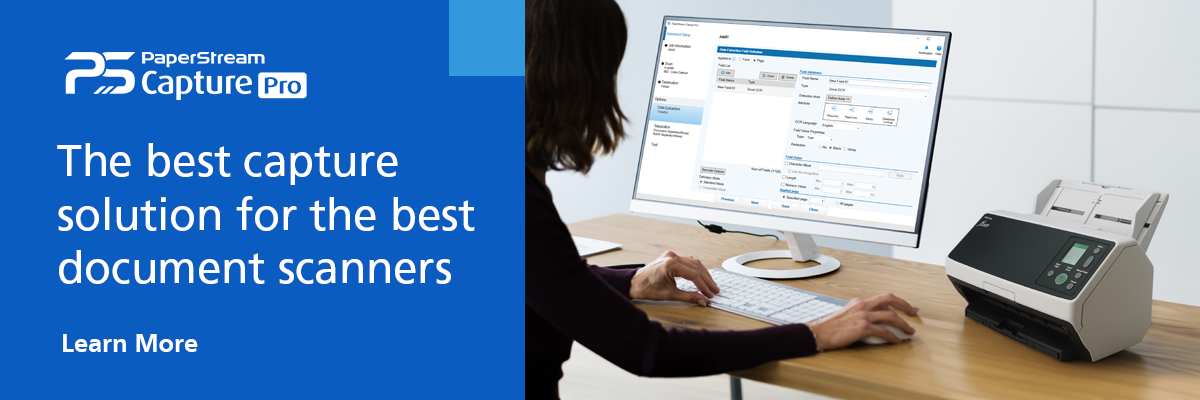
The RICOH fi Series scanners come equipped with powerful PaperStream software. PaperStream’s robust OCR features can quickly and accurately digitize text from scanned documents. You can also configure OCR options manually for even higher levels of precision. Many ScanSnap and fi Series devices can scan dozens of double-sided pages per minute, allowing you to build rich digital databases while minimizing tedious busywork.
Click here to learn more about PaperStream Capture Pro.
Note: Information and external links are provided for your convenience and for educational purposes only, and shall not be construed, or relied upon, as legal or financial advice. PFU America, Inc. makes no representations about the contents, features, or specifications on such third-party sites, software, and/or offerings (collectively “Third-Party Offerings”) and shall not be responsible for any loss or damage that may arise from your use of such Third-Party Offerings. Please consult with a licensed professional regarding your specific situation as regulations may be subject to change.