Get the most out of your golf simulator by adjusting brightness, reducing input lag, and choosing the right screen material
Whether you’re brushing up your skills or connecting with coworkers, a golf simulator is a great thing to have in your home or office. With the proper golf simulator calibration, your setup can be almost as good as the real thing. Calibrate your simulator with a little care, and you’ll get crisp visuals and realistic gameplay.
Naturally, getting the settings just right takes a little work. You'll have to do some math and assess the space you have to work with, but by following these simple tips, you’ll be testing your swing on the virtual green in no time.

How lumens and contrast ratio affect your golf simulator image
First, let’s talk about your golf simulator’s graphics. Your graphical settings depend on a ton of different factors, from the software you run to the projection screen you use. What affects your image quality most, though, is your projector. All other things being equal, projectors with high brightness levels and contrast ratios will give you the best possible picture.
Projectors generally measure brightness in a unit called lumens. A higher number of lumens means a brighter image. For example, a dining room candle might produce about 13 lumens, while a household light bulb might produce about 1,000 lumens. Consumer-grade projectors range between 1,000 and 10,000 lumens.
To find a projector with the ideal amount of lumens, you’ll need two pieces of information:
- The size of your screen
- The lighting conditions in your simulator room
For example, if you have a 16-foot projection screen in a room with big windows, you might need a 7,500-lumen projector if you play at noon, but only 3,500 lumens if you play at night. Remember that unlike watching movies or playing video games, you can’t use a golf simulator in a completely dark room. You still need to be able to see the ball, the tee, and your clubs.
Contrast ratio is another term that’s likely to come up as you research projector calibration for golf simulators. This term describes how strongly the device differentiates light and dark colors. In a projector with a 2000:1 contrast ratio, for example, a pure white is 2,000 times brighter than a pure black.
Higher contrast ratios are generally better than low ones, especially if you’re playing in a bright room. On the whole, though, contrast ratio isn’t usually a huge consideration for golf simulators. The software tends to favor functionality over stunning visuals, and you’ll see more mellow greens and blues than stark blacks and whites. If you can find a projector with a contrast ratio of 1500:1 or better, you should be in good shape.

Click here to download the full infographic
Understanding input lag and refresh rate for smooth gameplay
If your projector has the right brightness and contrast ratio, your golf simulator image quality should look pretty good. However, you might still encounter choppy gameplay or inconsistent framerates. If so, there are a few troubleshooting tricks you can try.
First, you should understand how your projector’s refresh rate works. Refresh rate, also called frame rate, refers to how many images appear onscreen each second. This metric is measured in Hertz (Hz). If your projector has a refresh rate of 60 Hz, for example, it can display up to 60 images every second. Some common frame rates include:
- 24 frames per second (fps) for movies
- 30 fps for live sports
- 60 fps for video games
Golf simulators tend to run between 30 fps and 60 fps. That means a 60 Hz projector is ideal, although a 30 Hz projector should work fine for simpler simulators.
Most modern projectors have refresh rates of at least 30 Hz. As such, if you’re dealing with input lag when you swing, the problem probably lies elsewhere. Assuming you’ve already tried the classic “restart your computer” routine, check your software. If there’s a patch available, update to the newest version. You can also try reinstalling from scratch — just make sure that you back up your save files.
Did You Know?: Approximately 31% of all projectors sold worldwide use Ricoh’s innovative lens technology. These lenses help make our projectors ideal for golf simulators in homes, offices, and pro shops.
Short-throw vs. long-throw projectors: Which works best for golf simulators?
If you’ve bought (or considered buying) a projector, you’re probably familiar with the concept of “throw.” Briefly, throw refers to the distance between a projector’s lens and its projection surface. Short-throw projectors can be close to the screen — three to six feet or so. Long-throw projectors need eight feet or more.
From a technical perspective, both short-throw and long-throw projectors work fine for golf simulators. From a practical perspective, though, short-throws tend to be a bit easier to work with.
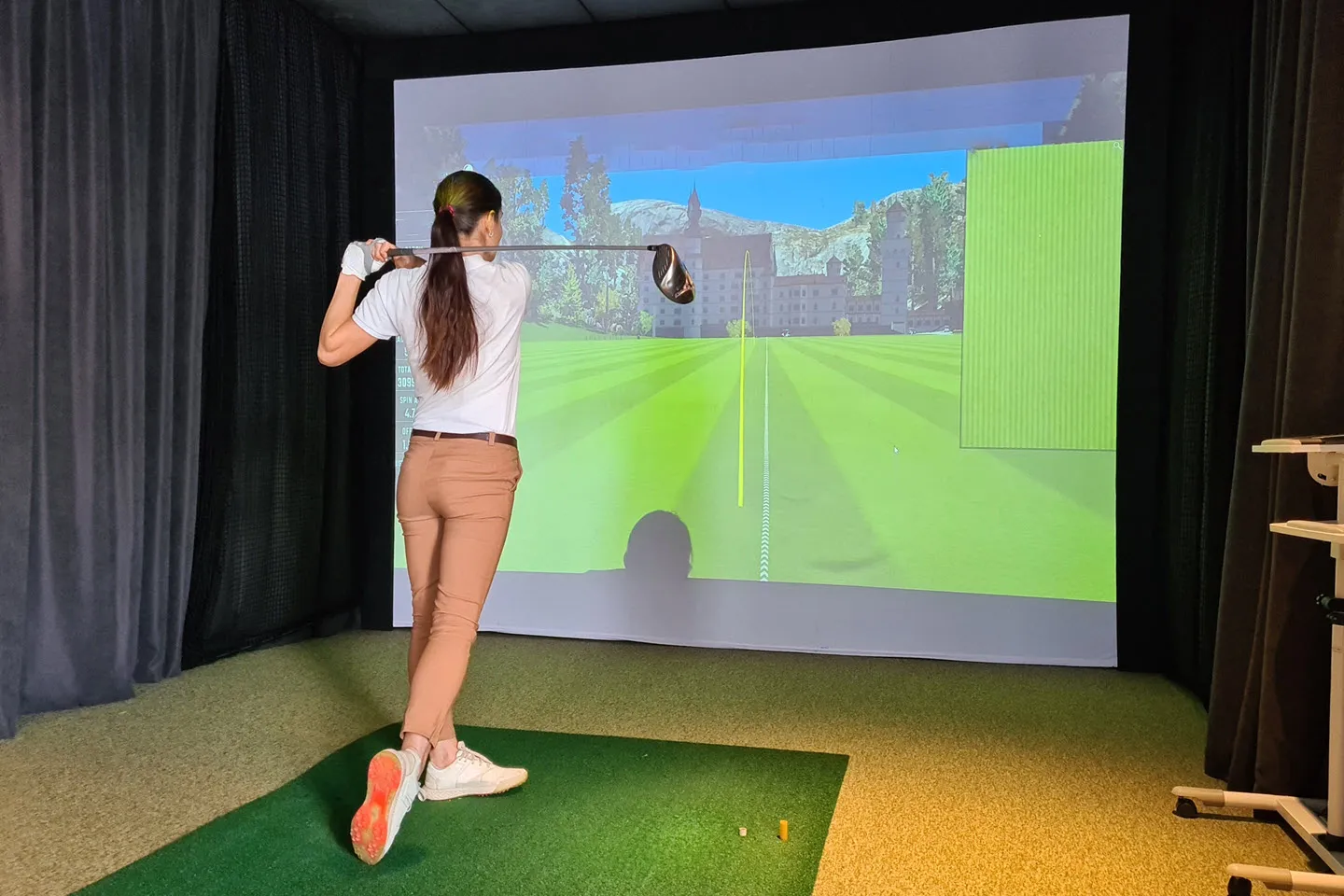
First, if you use a long-throw projector, you’ll probably stand between the projector and the screen. That means your body might cast a shadow, especially when you lift your club. Second, most golf simulator setups tend to be in smaller locations — garages, office nooks, and so forth. If space is tight, short-throw projectors are much easier to fit in. Just make sure the projector is high up enough that you won’t hit it when you tee off.
Our recommendation: Ricoh Projectors
The ideal golf simulator calibration requires some research and some calculations. Most of all, though, it requires great hardware. Ricoh’s high-quality projectors can help you feel like you’re on the green, whether you’re in a bright office or a darkened living room. Our devices range up to 9,600 lumens, and can project onto screens up to 300”. We also offer ultra-short-throw projectors, which can deliver stunning images from just inches away — a great option for tight spaces when paired with appropriate protective measures or a specialized setup.
Check out our golf simulator projector page to learn how a Ricoh projector can bring the game to your home, office, or pro shop.
Note: Information and external links are provided for your convenience and for educational purposes only, and shall not be construed, or relied upon, as legal or financial advice. PFU America, Inc. makes no representations about the contents, features, or specifications on such third-party sites, software, and/or offerings (collectively “Third-Party Offerings”) and shall not be responsible for any loss or damage that may arise from your use of such Third-Party Offerings. Please consult with a licensed professional regarding your specific situation as regulations may be subject to change.