In the past, digitizing your medical bills, tax documents, or other important paperwork was a hassle. Thankfully, it’s now easier than ever to figure out how to scan a document. If you’ve ever asked yourself, “How do I scan a document and upload it to my computer?” the following guide will teach you every step of the process.
You’ll learn all you’ll need to know about scanning including the basics of how to scan a document to a computer, how to scan a document into Word, and how to scan a document into an email. Keep reading to learn all about scanning a document from the world’s leading document scanner manufacturers.
For information on how to scan receipts, specifically, check out our guide to scanning receipts to your computer and specific applications, such as Excel.

How to scan documents to a computer (Mac and Windows/PC)
Step one: Ensure your scanner is turned on and connected
Press the power button on your scanner to turn it on. If you need to confirm your scanner is properly connected, check the following:
-
On Windows 11: Select Start, click Settings, then navigate to Devices, then Printers & scanners. Or, type “Printers & Scanners” into the Windows 11 search bar and click the Printers & Scanners result.
-
On Mac OS: Click the Apple menu, navigate to System Preferences, then click on Printers & Scanners.
If your scanner is connected to your computer, you should see its name within the list of devices on your respective operating system's menu. If your scanner doesn't appear, you may need to set up your device for use — consult your scanner's installation documentation for instructions.
Step two: Open your scanning software
If your scanner comes bundled with software, open it now to ensure the best compatibility and get the most out of your scanner's built-in features.
If you don't have any scanning software, that's ok! Both Windows 11 and Mac OS have built-in scanning tools. They may not be as robust as custom-tailored software, but they'll get the job done.
-
On Windows 11: Click Start, navigate to Windows Accessories, then click Windows Fax and Scan. Alternatively, you can search for Windows Fax and Scan in the Windows 11 search bar and click on the matching result. Make sure you have Scan selected from the options in the bottom left corner of the window.
-
On Mac OS: Options for scanning are located within the Printers & Scanners menu previously mentioned.
Did you know?ScanSnap scanners specialize in versatility and ease-of-use at an affordable price. Click here to learn more.
Step three: Place the pages you want to be scanned into the scanner
Before starting your scan, determine how many pages you have, what kind of scans you need, and what scanning options you have available.
-
Flatbed scanner: Perfect for single, one-sided documents, images, or anything you need a high-quality scan of. To use, open the lid of the scanner, align your document with a corner of the glass tray (usually designated by an arrow) content-side down, and close the lid.
-
Automated document feeder (ADF): Useful if you have more than one document or two-sided documents. To use, stack your documents so the sides are as flush as possible, then insert them into the feeder just enough so it will pull your documents when scanning begins. Consult your operating manual to determine the proper facing of documents when using a sheet feeder.
Both methods are perfectly capable of scanning most documents, so don't worry if your scanner only has one of these options. If your scanner is equipped with a flatbed and feeder, use the one that best suits your needs.
Step four: Scan document
Your scanner may have a simple scan button on the device that will perform one-touch scans when used in conjunction with the included software. If all you need is a digitized copy of your document using default settings, this will likely be more than enough to scan documents.
If your scanner doesn't have on-device buttons or you need to tweak scanner settings, open up your software of choice and click the New Scan button (or similar; the exact language and functionality to scan documents will differ depending on what you’re using).
You may see the following options when initiating a scan:
-
Source: If your scanner has both a flatbed and feeder, pick the one you’ll use to scan documents.
-
Color: Pick between black and white, color, or other coloring and detail options. Black and white images tend to scan quickly and are smaller in file size than color images, but choose the one that makes sense for your needs.
-
File type: You can set the image's file extension here. PDF or JPEG files are the most common and provide a good balance between size and quality, while BMP files are much larger, and TIFF files are smaller (great for text documents).
-
Resolution/DPI: DPI stands for “dots per inch,” and the number determines the quality of your scan. Higher numbers mean better quality but also larger file sizes. 300 dpi is often the default setting and is perfect for general use.
-
Brightness/Contrast: Default options are fine for most cases, but you may need to adjust these depending on the quality of your source documents. For example, if your documents have faded text, you may need to increase the contrast for a more accurate scan.
Options may vary depending on software choice and operating system, but these are the most common settings to scan documents. Once everything is to your liking, click Scan to begin.
Did You Know? PCMagazine called the ScanSnap iX2500 as "speedy, versatile and reliable." Click here to read the full review.
Step five: Check scan preview
After initiating the scan, you’ll likely get a preview of the final scanned image, which usually takes a fraction of the final scanning time. Here, you’ll be able to view what your finalized scan will look like, allowing you to make any final adjustments before initiating a full scan. If everything looks good, click the scan button. Your scanner will begin working and may take several minutes to complete depending on how detailed the final image is.
Step six: Save scanned document
The final step in the process of how to scan a document to a computer is to check that your software has saved the document once it has been scanned. If you’ve scanned more than one document, or your documents are double-sided, ensure all pages are scanned and saved correctly. Re-scan any documents that may be missing or have come out poorly.
By default, Windows Fax and Scan saves scanned images in the Scanned Documents sub-folder. This folder is accessible by navigating to your Documents folder or typing Scanned Documents into the Windows 11 search bar and clicking on the top result. You can also click the Save As button in the toolbar to change the file type or save the image in another location.
On Mac, saved scans default to the folder determined by your scanner during initial setup — refer to your scanner’s documentation to find the exact location.
How to scan a document into Word
Let’s dive into our step-by-step guide to getting your scanned documents into Microsoft Word.
Step 1: Scan your document
Scan your document following the process laid out above using a dedicated document scanner or scan using your iPhone or Android device.
Step 2: Convert to image file
If you’re wanting to import a scan with editable text, skip to step 3.
After scanning your document, it was most likely saved on your computer as a .JPG or .PNG file. However, if your scan has been saved as a PDF, you’ll need to convert the scan file as either a .JPG or .PNG file (Open the file, select either Export or Save as, and select .JPG or .PNG from the dropdown list).
Once your scan has been converted, then open a Word document and place your cursor where you’d like the image to appear. Navigate to Insert and then Pictures in the top menu, select your scanned image file, and click Insert.
Step 3: Importing editable text
To import a scanned document as editable text, click File, then Open, and select the .PDF file of your scan. A pop-up box will appear asking for permission to convert your file into an editable Word document. Click OK, and Microsoft Word will automatically begin the conversion process.
Step 4: Work with your scan in Word
At this point in the process, you can edit and manipulate your scanned text and images the same way you would in any other Word document.
Once you begin working with your scans, though, it will become clear that higher quality scans make for better quality images and text. Using a reliable and precise dedicated scanner will improve the clarity and accuracy of your scanned documents, making for an effortless experience once you import them to Microsoft Word.
How to scan and email a document
To scan and email a document, first you’ll need to scan the document by following the steps in the first section of this guide or read our posts on how to scan with an iPhone or how to scan with Android. Once your document has been scanned, find the email application you would like to use below, and follow the specific steps for emailing your scan using that application.
How to scan a document to email in Gmail
Gmail uses a drag-and-drop method for adding scanned documents to emails.
Simply select the document or documents you’d like to attach, then drag them to the body of your email. Documents will appear as an attachment, while photos will be embedded directly into the email’s body.
Alternatively, click the paper clip icon in the lower-left corner of the new email window, located to the right of the “Send” and “Formatting options” buttons. This will open a file browser where you can select images and documents to attach without adding anything to the email’s body. Notably, Gmail limits attachments to 25 Mb — anything larger will be uploaded to a Google Drive folder the recipient can access.
Drag-and-drop functionality isn’t available within the Gmail app. Instead, on mobile devices, begin by composing a new email. The paper clip icon will be in the top right corner of the app, allowing you to attach documents stored on your phone or Google Drive and attach them to your email.
How to scan a document to email in Outlook and Hotmail
Outlook, which Hotmail email addresses also use, is similar to Gmail in that it supports drag and drop file attachments. The process of adding documents to an email without dragging and dropping is also similar, as the email provider has its own paper clip attachment button.For Outlook users, the button will be in the top left corner. From here, you can add a document from your computer or cloud locations like Microsoft OneDrive.
The Outlook mobile app has an easily navigable interface, with the attach button in the bottom left corner, just above the keyboard. Tap the paperclip icon to pull up options to attach files or photos, allowing you to add files that are locally stored or in the cloud.
How to scan a document to email with Apple Mail
Apple Mail works through an app that comes pre-loaded on Mac computers. Once you’ve opened the app and created a new email composition, a second window will appear where you’ll type out your message. On the top right corner of the new window, you’ll see an attachment icon — yet another paper clip, of course — next to the reply button. Click it, and a new pop-up window will open that allows you to attach documents.
Apple Mail’s mobile interface is a bit harder to navigate than the other major email apps because of its differing icons. To attach a file, long-press the body of the email, which will prompt a touch menu to appear and give you the option to select and format text. Press the right-facing arrow on the screen once, and you’ll see the option to insert a photo or video into your email. Press it twice, and you’ll see the option to attach a document.
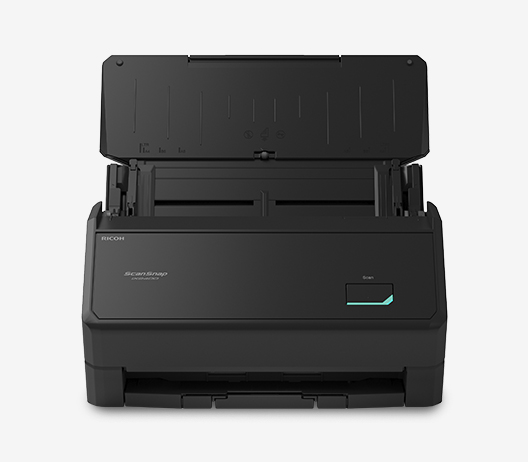
Our recommendation: ScanSnap iX2400
We know you have no shortage of options when it comes to choosing a home document scanner. We pride ourselves on having spent the last 50+ years designing and developing some of the most beloved electronics in the world, including our line of award-winning, easy to use, one touch ScanSnap scanners.
The ScanSnap iX2400's built-in ultrasonic sensors and advanced paper-separation technology automatically detect document types and touch-up image quality, giving you fast, reliable, and hassle-free scans at the push of a button. The included ScanSnap Home software provides a simple, all-in-one editing solution for scanning, managing, editing, and sending important documents and images. Click here to learn more and shop the full line of ScanSnap scanners.
Note: Information and external links are provided for your convenience and for educational purposes only, and shall not be construed, or relied upon, as legal or financial advice. PFU America, Inc. makes no representations about the contents, features, or specifications on such third-party sites, software, and/or offerings (collectively “Third-Party Offerings”) and shall not be responsible for any loss or damage that may arise from your use of such Third-Party Offerings. Please consult with a licensed professional regarding your specific situation as regulations may be subject to change.