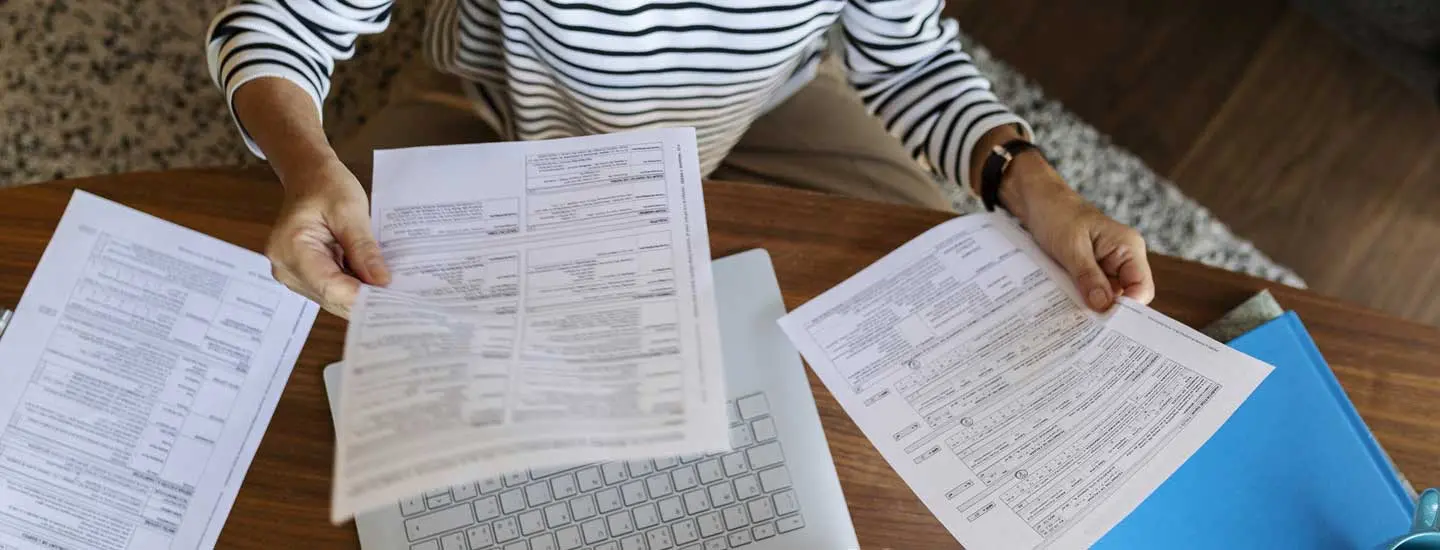
A single receipt is more than just a flimsy piece of paper cluttering up your wallet. For many people, receipts are critical documents at least once a year. Many accounting departments require receipts along with expense reports, for example. And come tax time, deductible expenses require proof in the form of, you guessed it, receipts.
That’s why scanning receipts is so important; not only is it an excellent method of safeguarding the financial paper trail, it also makes it easier to crunch the numbers when the time comes. If you’re ready to learn how to scan receipts with the best tech tools out there, let’s get started.
Got something else that needs scanning? Check out our comprehensive guide, "How to Scan Just About Anything."

Why scan receipts?
Keeping an archive of purchases and other expenses is a critical part of running a successful business. Come tax time, having these records available will allow you to get the best results from your return while protecting you during unforeseen audits or other queries about where the numbers are coming from.
However, most modern receipts are made out of thermal paper, which is coated with a heat-sensitive chemical that allows for the rapid transfer of printed data. While thermal paper significantly speeds up transaction processing times, it also degrades rapidly, with printed text fading after exposure to heat, sunlight, and the natural oils generated by our skin.
What begins as a clear record of your purchase can become a crumpled, faded mess in just a few short months. Making a digital scan of these transaction records as soon as you’re able ensures that this data lives on and is accessible when you need it — whether that’s months or years down the road.
How to scan receipts
1. Flatten your receipts
Make sure your receipt is as flat as possible before you try to capture its image. Gently smooth out any wrinkles and remove staples or paper clips. If there’s a tear, repair the receipt with clear tape.
2. Arrange your receipts in your scanner
If you’re using a flatbed scanner, arrange as many receipts as will fit in the scanning space facedown onto the glass. Be careful not to let them overlap. Make sure they’re oriented in the same direction so that it’s easier for either you or the scanner’s optical character recognition (OCR) software to read them.
If you’re using a scanner with a receipt guide, refer to the device manual for specifications on how many receipts can be fed at a time and whether there are any size limitations. Depending on the scanner model, you may need to tape receipts to a larger sheet of paper to scan several at a time.
3. Scan the receipts
Once you have the receipts in good shape, it’s time to scan them. You’ll need to use scanning software to turn the images into data that can be imported into a spreadsheet. There are many different receipt scanning apps available, both for mobile devices and computers. If you have a scanner, it may have its own specialized receipt scanning software.
4. Name the files
You’re creating the scan images to get their information into Excel, but you may want to refer to them again for other reasons. Name each image file in a way that will help you quickly identify what receipts it includes. The naming system is up to you; just be consistent. You could organize receipts by date, type of purchase, vendor, or money spent. Keep file names short and avoid using special characters or spaces.
How to scan receipts into Excel
-
Open your scanning software of choice.
-
Export the receipt data from your scanning software as a .csv file, a file type commonly used to store lists of data.
-
Open Microsoft Excel.
-
If you wish to create a new Excel spreadsheet, click File > Open, then navigate to and select the .csv file.
-
If you wish to import the data into an existing spreadsheet, click the cell where you would like the data to go, then click Data > Get & Data Group and click the From Text/CSV option.
If Excel is confused about any of the data it imported from the scan, it will highlight the tables in question in red. This allows you to review any potential mistakes. Even if the scan doesn’t produce any questionable boxes, it is worth reviewing the information in this window to save the hassle of correcting it later.
Once you have confirmed the data is correct, click on the “insert data” button, and the spreadsheet will populate. Repeat the process as many times as necessary.
What to look for in a receipt scanner
A key component of understanding how to scan receipts is knowing what features are available that will make your job easier. While many of the following features are helpful to have, finding a scanner that combines all of them in a single device will drastically reduce the time and labor required to digitize and organize your expenses.
Automatic document detection
Most scanners are built with a primary focus on letter-size sheets of paper, but don’t let that fool you. Look for automatic document detection, which will ensure that your scanner adjusts appropriately to process the smaller (and often thinner) paper that receipts are printed on without jamming, skewing, or skipping pages.
RICOH ScanSnap scanners, in particular, also include a built-in auto-quality feature that detects receipt-sized papers in mixed batches and increases image resolution to 300 dpi (dots per inch) to improve the readability of smaller font sizes.
Automatic feed capabilities
Unless you’re scanning receipts one at a time as you receive them or every day before you leave the office, chances are you’re staring down a large backlog of tiny slips of paper when it comes time to arrange your finances. Look for a scanner that has anautomatic document feeder or dual scan functionality; moving two or more receipts through your scanner at a time will significantly reduce the time you have to spend processing paperwork.
Device connectivity
Your connectivity needs will largely depend on whether you use your receipt scanner at home, at the office, or while you’re on the road. You may prefer a device that can connect directly to your desktop computer, laptop, or mobile device over a Wi-Fi connection, or you may need a scanner that can act as its own access point if you can’t always count on having Wi-Fi access. Some scanners even offer direct-to-cloud scanning, meaning you don’t need a device at all to safely save a digital image of your receipts. Make sure to check that your receipt scanner has all the connectivity options that make the most sense for your setup.
Image quality
Because receipts are really about accounting and finances, it’s absolutely critical that the scanned version of each one is as crisp and legible as its hard copy. Using a high resolution scanner with text detection capabilities and automatic image enhancements will ensure that your receipt scans are perfectly legible and satisfactory for your accountant, bookkeeper, or boss (even if the boss is you).
Receipt scanning software
Receipts are one document type that make great use of scanning software capabilities. Look for software that can organize your scanned receipts and capture numerical information and classification data from each receipt in editable tables. Optical character recognition (OCR) will ensure that each number is accurate and precise, without missing a zero or misplacing a decimal point.
Depending where in the world your receipts are from, you may also need a currency detection or conversion option to make sure you’re tracking and reporting your expenses in the correct amounts. And lastly, make sure your receipt scanning software gives you the option of exporting a spreadsheet as either a .JPG, .PDF, or .CSV file so you can crunch the numbers or submit your final figures wherever you need to.
Learn more about how to choose the right scanning software by reading our blog post on how the right scanning software unlocks business insights.
Our best scanner for receipts: ScanSnap iX100 and ScanSnap iX1600 Receipt Edition
We know you have no shortage of options when it comes to choosing a home document scanner. At Ricoh, we pride ourselves on having spent the last 50+ years designing and developing some of the most beloved electronics in the world, including our line of award-winning, easy to use, one touch ScanSnap scanners.
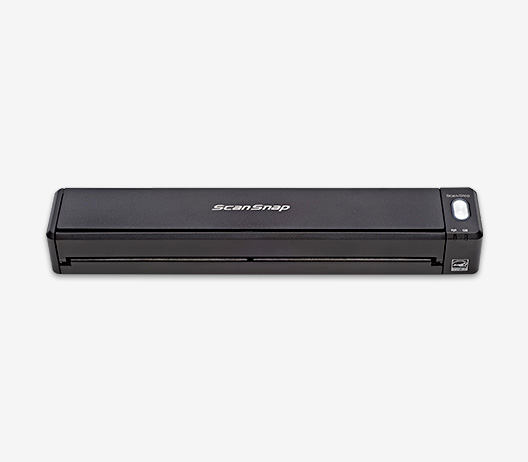
We recommend the RICOH ScanSnap iX100 for anyone who needs a reliable and easy way to scan receipts on the go. The ScanSnap iX100 is a completely wireless and dramatically compact scanner that you can easily stash away to scan receipts from anywhere. It’s battery powered and weighs less than a pound, making it perfectly portable, and dual scan capabilities allow you to work twice as fast by scanning receipts in pairs. The ScanSnap iX100 also comes with ScanSnap Receipt, a powerful suite of software that allows you to organize, split, and join receipt scans, capture, process, and edit numerical data, export information in CSV format, and so much more.
For a desktop ADF option, the ScanSnap iX1600 Receipt Edition is optimized for those who use QuickBooks® in the home or the office. The Receipt Edition offers exclusive Invoice and Receipt OCR processing features for the ultimate in productivity when scanning, not just the scanned file, but the important data they contain directly into an existing QuickBooks account.
Shop the ScanSnap iX1600 Receipt Edition here.
Note: Information and external links are provided for your convenience and for educational purposes only, and shall not be construed, or relied upon, as legal or financial advice. PFU America, Inc. makes no representations about the contents, features, or specifications on such third-party sites, software, and/or offerings (collectively “Third-Party Offerings”) and shall not be responsible for any loss or damage that may arise from your use of such Third-Party Offerings. Please consult with a licensed professional regarding your specific situation as regulations may be subject to change.