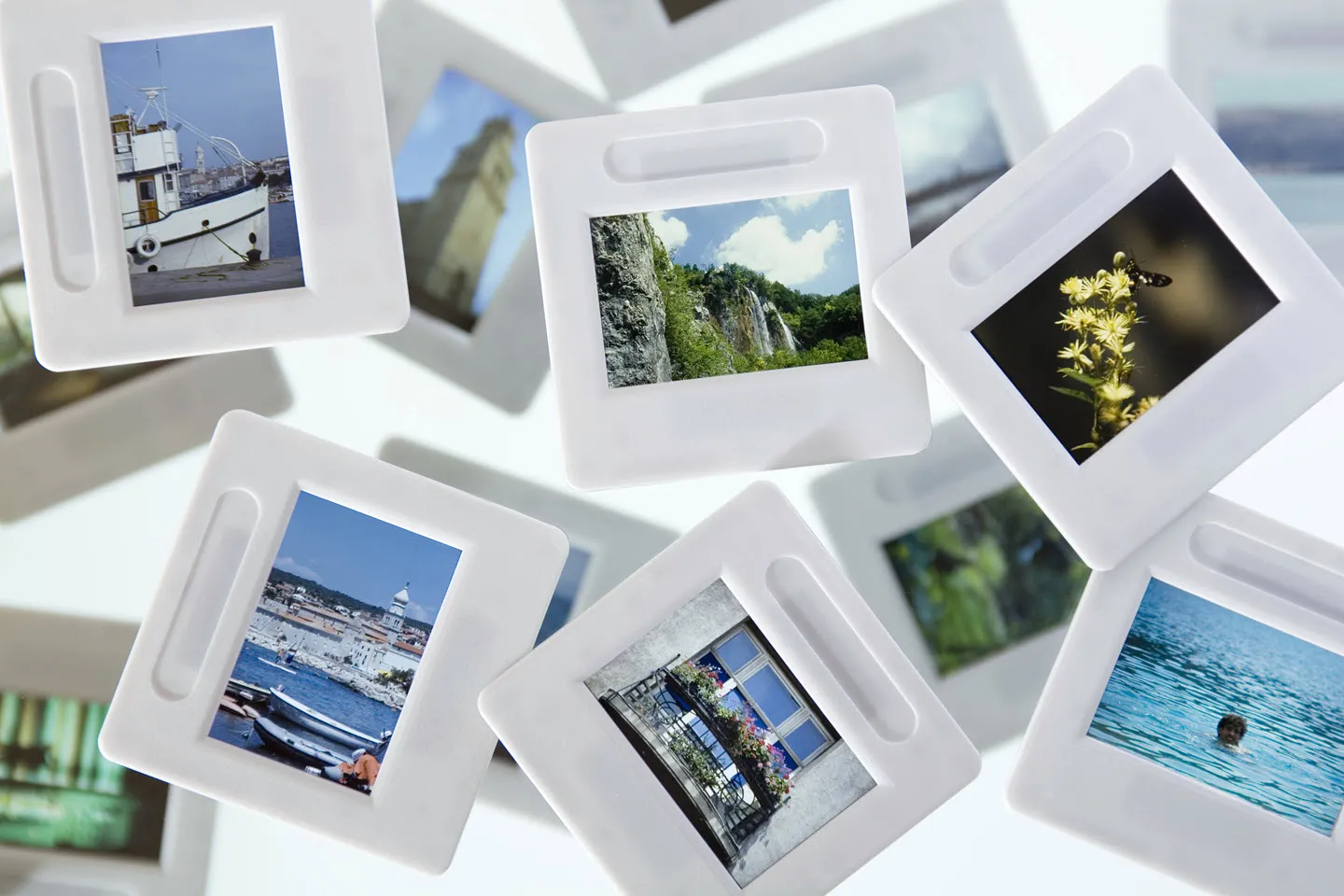
You probably have a box of slides somewhere, holding birthdays, vacations, and faces you love, with no projector left to show them on. Those little pieces of film are more precious now than ever, and the good news is you do not need a slide projector to enjoy them again. If you want to bring those moments from the analog to the digital era, whether to share them or simply preserve them, you are likely wondering how to scan slides.
Your first decision is whether to send the slides away for professional digitization or to scan them yourself at home, and we will walk you through how to choose the right path for you.
Got something else that needs scanning? Check out our comprehensive guide, "How to Scan Just About Anything."
Key Takeaways
- The big choice: Your first step is deciding between a convenient mail-in professional service and a DIY weekend project at home.
- The DIY prep: If you scan at home, success starts with organizing and deep-cleaning your slides. We suggest nitrile or latex gloves and a cotton swab with at least 98% isopropyl alcohol to lift decades of dust and mold before scanning.
- The hardware hurdle: Dedicated slide scanners give the highest resolution for DIY projects. A standard flatbed can work, but because mounted slides do not sit perfectly flat, it often produces dark, crooked, or noisy images that need extra editing.
- Cost and quality: Professional services usually price per slide with bulk discounts, and scanning 35mm at around 10 megapixels is plenty for a sharp print.
- Our recommendation: Because slides pack so much detail into a tiny frame, we think a professional mail-in service is the strongest route when quality matters most.
How to Know Which Kind of Slides You Have
A photo slide is a mounted piece of reversal film, a positive transparency made to be projected onto a wall or screen. Unlike a negative, a slide shows the image the way it was captured, which is part of why the colors and detail can look so rich.
The most common format is 35mm, but as you sort your collection you may also come across 110, 126, 127, and larger 120 medium-format slides. Knowing which format you have is worth a minute of your time, because it determines which scanner holder or service option will fit your slides.
How to Have Your Slides Scanned Professionally
Numerous mail-in services cater to people who want to know how to scan slides without needing to invest in their own hardware and follow step-by-step instructions. These services typically offer rates based on the number of slides you plan to send in for digitization, with the final files either sent to you for download via a cloud service or on a physical medium such as a USB drive or DVD data disc.
Here are a few reasons you may want to opt for professional slide scanning:
- You have a mid-sized slide collection: If your collection of slides spans several dozens to a few hundred, you will likely find it more cost-effective to send them away than to invest in dedicated hardware. Thanks to the proliferation of digital photography, you probably will not be making more slides to digitize after these ones are taken care of. However, if you already own your own scanner and wish to try scanning your slides yourself, check the next section of this article for more information.
- You want the easiest possible process: Many professional services allow you to simply select the options you want, print out a pre-filled shipping label, affix it to your boxes full of slides, then send them off and wait for the results. While the work of digitizing your own slide collection can be fulfilling, there is no question that it is also quite a bit more time-consuming than turning to a professional.
- You want the best quality possible: Photographic slides pack an incredible amount of detail into a tiny space, with small elements that are nearly impossible to observe with the naked eye reappearing once enlarged via a slide projector. Professional slide scanning services use digitization machines with extremely high-resolution sensors that would be otherwise impractical for daily use to capture these details.
Wondering about cost? Most services price per slide, often with bulk discounts as your order grows, and small batches can start around $15 to $20 before per-slide fees.
Turnaround commonly runs a few weeks, and many services return both your original slides and the digital files. If you have only a handful of slides, the film counter at some drugstores and warehouse clubs can handle the job locally, though a dedicated mail-in service tends to be more economical once your collection grows.
Did You Know?:Make sure your printed photos are ready for the future too, with our guide to Photo Scanners: How to Choose the Picture Perfect Machine for Your Needs.
How to Scan Slides at Home
If you want to know how to scan slides to digital formats with your own scanner, you’re in for an ideal weekend project. The process isn’t terribly complicated, but it will require a good amount of time and a small list of materials. Let’s start from the beginning.
Organize Your Slides
The first step in the process is to get all your slides in one place and determine which order you want to work through them. If your slides were not stored in a particularly well organized manner, you can get a quick glance at the contents of each one by holding it up to a moderately bright light and looking closely.
A magnifying glass can be helpful for picking out small details. If some slides are duplicates or not very high quality, with blurry images or poor exposures, for instance, you may wish to skip digitizing them.
Clean Your Slides
Knowing how to scan slides starts with knowing how to restore them. Unless you stored your slides in perfectly clean and dry conditions, they have likely accumulated some dust over the years, and may have even become moldy.
For a quick, safe cleaning process, we suggest wearing nitrile or latex gloves to avoid depositing further oil or dust on the slides, then wiping each side of the slide with a fresh cotton swab dipped in at least 98% isopropyl alcohol, and finally drying each side with compressed air.
Scan Your Slides
The execution of this step will vary substantially depending on what kind of scanner you are using. Purchasing a scanner purpose-built for digitizing slides can work well and yield a higher-resolution image, though it also likely will not be of much use once you finish scanning your collection. If you are weighing devices, our overview of photo scanners can help you compare features.
You could also try digitizing your slides with a flatbed scanner, but you are not guaranteed to get good results. Because mounted slides do not sit flat, they will not scan as accurately as regular photos. That means you may have to deal with dark, crooked, noisy digital images that require a lot of photo editing to look good. Slides also need light coming from behind them to scan well, so a flatbed works best with a transparency unit or a simple backlight setup rather than the standard reflective lid.
Lining up slides on a flatbed can be a time-consuming, error-prone process that you may have to repeat a few times for passable results.
You have a couple of other options too. If you own an SLR or mirrorless camera, a slide duplicator attachment lets you re-photograph each slide with even backlighting, which can be a quick approach for smaller batches.
For casual, on-the-go conversion, a slide-scanning app paired with a backlight can turn your phone into a simple converter, though the quality generally trails a dedicated scanner.
Whatever method you choose, resolution matters. Scanning 35mm slides at around 10 megapixels, roughly 2,000 dpi, is usually plenty for a sharp print, and going higher is not always better because it can exaggerate the film grain. Whichever type of scanner you have, try scanning a test image before you proceed with further slides.
Then, open up the digital version of the first slide you scanned and see if it yielded a satisfactory image. If not, adjust the settings and continue to hone your process for how to scan slides until you are pleased with the results.
Did You Know?:ScanSnap Home features automatic image correction, document categorization, and support for multiple devices to help make digitization easy and approachable.
Which Method Is Right for You?
The right method comes down to how many slides you have, your budget, and the quality you are after. For large or irreplaceable collections, a professional service usually gives the strongest results with the least effort on your part. For a small, casual batch, a dedicated slide scanner or a phone app can be a good fit and keep costs down.
A flatbed scanner you already own can work too, as long as you are comfortable doing some editing afterward. If you would like a wider look at scanner options before you decide, see our guide to scanning photos.
Why Scan Slides?
While slides used to be an easy way to display photos on a big screen, modern technology has made that process much easier. Digital projectors, computer monitors, smart TVs, and a bevy of other devices make it trivial to share photos on any screen we wish. We can even do so without having to develop those photos first, thanks to the advent of digital photography.
However, old slides still contain invaluable, potentially irreplaceable photos. Furthermore, because of their construction and storage, slides are often in better condition and offer better image quality than contemporaneous photographs. Scanning slides is a way of using current devices to preserve and share important memories. In short, learning how to scan slides can be an important way to preserve family or even cultural memory.
Our Recommendation
Although we’ve spent the last 50+ years designing and developing some of the most beloved electronics in the world, including our line of award-winning, easy to use, one touch ScanSnap scanners, slides require such exacting care that we recommend using a professional scanning service.
For your other document needs, however, we proudly suggest the ScanSnap line. Click here to learn more and shop the full line of ScanSnap scanners.
Note: Information and external links are provided for your convenience and for educational purposes only, and shall not be construed, or relied upon, as legal or financial advice. PFU America, Inc. makes no representations about the contents, features, or specifications on such third-party sites, software, and/or offerings (collectively “Third-Party Offerings”) and shall not be responsible for any loss or damage that may arise from your use of such Third-Party Offerings. Please consult with a licensed professional regarding your specific situation as regulations may be subject to change.